

Help for Downloading, Installing, and Running
Help on Downloading
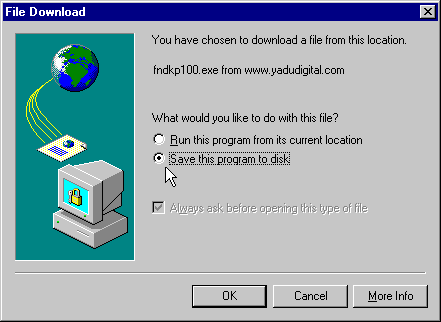
When you start a download, you will see a dialog such as the following.
Choose "Save this program to disk".
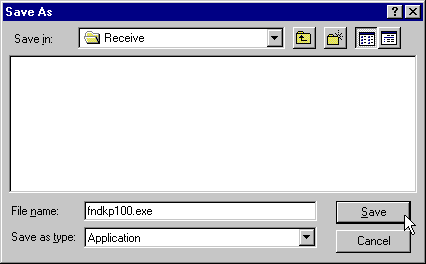
Next, you will see the familiar "Save As" dialog. Here, you choose a folder in which to save the software that you are downloading. Choose any folder you like. But be sure to remember--or write down--the name of the file and the name of the folder. In the example below, the file "fndkp100.exe" is being saved to a folder named "Receive".
|
Help on Installing
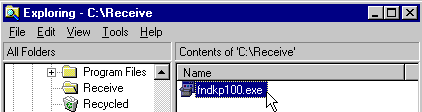
Use Windows Explorer to find the file in the folder you selected in the "Save As" step of downloading
(see "Save As" illustration above). Double-click on the file name--in the example below,
it is "fndkp100.exe". The file you downloaded, ending in EXE, is an installation setup file.
Double-clicking on it causes it to run. Installation is automatic and easy--just follow the directions on screen.*
|
 *Note: No system files on your computer are changed or "updated"
during installation; so, installing and uninstalling are free of risk. An automated uninstall is provided.
*Note: No system files on your computer are changed or "updated"
during installation; so, installing and uninstalling are free of risk. An automated uninstall is provided.
Help on Running
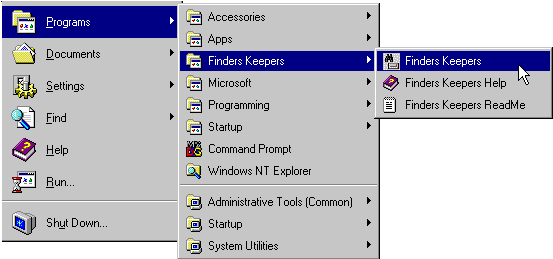
After installing, click on "Start" on the Windows® taskbar:
Click on Programs. Then look for the program's shortcuts, as seen in the following example, in which Finders Keepers is the installed program:
|

Copyright © 2024 YaduDigital.com All rights reserved